

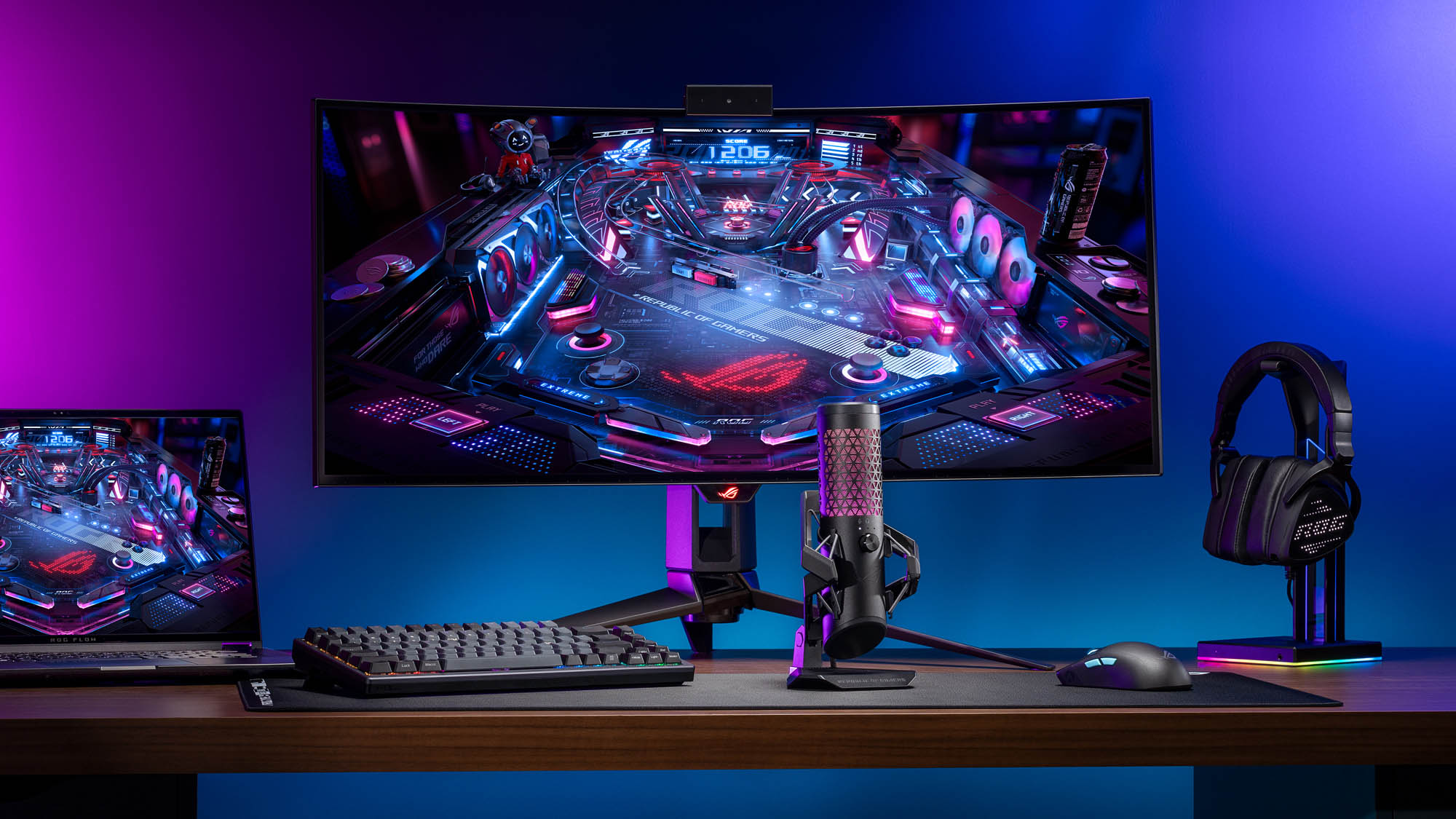
Esports isn’t just a hobby; it’s a competitive field where milliseconds and pixels can decide your fate. If you’re a gamer aiming to rise through the ranks or simply perform at your peak during online tournaments, optimizing your gaming laptop is crucial. Unlike desktops, laptops have unique challenges like thermal management, limited upgradeability, and power efficiency. Don’t worry; this guide has you covered with actionable tips to transform your gaming laptop into an esports powerhouse.
Introduction: The Need for Optimization in Esports
Imagine losing a critical match because of lag, screen tearing, or overheating—frustrating, right? Esports requires razor-sharp reflexes, a smooth gaming experience, and a reliable machine. While gaming laptops are compact and convenient, they often require fine-tuning to deliver peak performance. Whether you play first-person shooters, MOBAs, or strategy games, this guide will show you how to unlock the full potential of your gaming laptop for an esports-ready experience.
1. Start with the Basics: Keep Your Laptop Clean and Cool
Heat is the enemy of performance. Gaming laptops generate significant heat during intense gaming sessions, which can throttle your CPU and GPU, reducing frame rates and responsiveness.
- Clean your fans regularly: Dust buildup can choke airflow, leading to overheating. Use compressed air or a soft brush to clean the vents and fans.
- Invest in a cooling pad: A good cooling pad can reduce your laptop’s temperature by several degrees. Look for one with adjustable fans to suit your laptop’s design.
- Optimize airflow: Ensure the laptop is placed on a hard, flat surface during use. Avoid gaming on soft surfaces like beds or couches, which block vents.
2. Update Drivers for Maximum Performance
Gaming performance is heavily reliant on up-to-date drivers.
- Graphics drivers: Nvidia and AMD frequently release updates to improve game performance and compatibility. Use their dedicated software (GeForce Experience or AMD Adrenalin) to keep your drivers updated.
- Peripheral drivers: If you use external gaming peripherals like a mouse, headset, or controller, ensure their firmware is also up to date for smoother integration.
3. Manage Background Processes
Esports games like CS:GO or League of Legends demand every bit of your system’s resources. Background applications can consume CPU and RAM, leading to lag.
- Use Task Manager: Identify and close unnecessary programs consuming resources.
- Disable startup programs: Prevent irrelevant apps from running in the background when you boot your laptop.
- Gaming mode: Many laptops have a built-in gaming mode that prioritizes system resources for your game. Activate this feature whenever you game.
4. Optimize In-Game Settings for Performance
The allure of ultra-high graphics settings is tempting, but esports prioritizes smooth performance over visual fidelity.
- Resolution and graphics: Lower settings like shadows, textures, and anti-aliasing to achieve higher frame rates. Most esports players aim for 120 FPS or more for competitive gaming.
- Enable V-Sync or G-Sync: These technologies help reduce screen tearing, ensuring smoother visuals during fast-paced action.
5. Boost Your Internet Connection
In esports, latency can make or break your performance. To avoid rubberbanding or lag spikes, optimize your internet connection.
- Use a wired connection: Ethernet cables offer more stability and speed than Wi-Fi.
- Optimize router settings: Enable Quality of Service (QoS) settings on your router to prioritize gaming traffic.
- Use a gaming VPN: A VPN designed for gaming can reduce latency by optimizing server routes.
6. Upgrade Your RAM and Storage
Gaming laptops often come with standard configurations that may not be ideal for competitive gaming.
- Add more RAM: Upgrade to at least 16GB for a smoother experience, especially in modern esports titles.
- Switch to SSD storage: If you’re still using a hard drive, upgrade to an SSD for faster boot times, reduced game loading screens, and improved system responsiveness.
7. Customize Power Settings
Power-saving modes can hinder performance. Ensure your laptop is configured for gaming:
- High-performance mode: In Windows, switch to “High Performance” or “Ultimate Performance” mode for better resource allocation.
- Disable battery saver: While gaming on the go, ensure that power-saving features don’t compromise your performance.
8. Fine-Tune Your Display Settings
Your display is the window to your esports world, so make sure it’s optimized:
- Set the refresh rate: If your laptop supports a 120Hz or 144Hz refresh rate, enable it in your display settings. This will give you smoother visuals and an edge in competitive gaming.
- Calibrate colors: Adjust your display settings for better visibility in dark areas, especially in games with complex lighting.
9. Configure Your Gaming Peripherals
Your mouse, keyboard, and headset are extensions of your skills. Optimizing them can make a big difference in your performance.
- Mouse DPI and polling rate: Adjust the sensitivity to match your playstyle. Most esports pros prefer lower DPI settings for precision aiming.
- Keybinds: Customize your in-game controls to fit your comfort zone.
- Surround sound: Enable surround sound settings in your headset software to hear enemy movements more accurately.
10. Use Game-Optimizing Software
Several software solutions can enhance gaming performance by optimizing system settings:
- Razer Cortex or MSI Afterburner: These tools can boost your FPS by disabling unnecessary background services and reallocating resources.
- Overclocking software: If your laptop supports it, use software to safely overclock your GPU for additional performance.
11. Monitor Thermal Throttling
Thermal throttling occurs when your CPU or GPU gets too hot, forcing the system to reduce performance to prevent damage.
- Install monitoring software: Tools like HWMonitor or MSI Afterburner allow you to monitor temperatures during gaming.
- Undervolting: Reduce voltage to your CPU and GPU to lower heat output without sacrificing performance.
12. Backup and Maintain Your System
A cluttered or outdated system can slow down performance.
- Clear cache and junk files: Use tools like CCleaner to regularly clean your laptop.
- Defrag your drive: If you’re still using an HDD, defragment it for optimal performance.
- Backup regularly: Keep a backup of your data to avoid losing important files during system crashes.
13. Focus on Game-Specific Optimizations
Some games benefit from specific tweaks. For instance, in slot games, enabling lower latency settings can help ensure smooth gameplay and quicker responses when placing bets or spinning. Similarly, if you’re into a poker game, adjusting resolution settings and ensuring clear audio cues can enhance the strategic aspect of your play. These small adjustments can make a big difference in esports-like environments.
14. Practice Regular Maintenance and Updates
Even the best-optimized system requires regular maintenance to stay at its peak.
- Update your OS: Keep your operating system updated for better compatibility and security.
- Game updates: Always install patches and updates for your favorite esports titles to benefit from bug fixes and performance improvements.
- Reinstall the OS: If your system feels sluggish, a clean OS reinstall can restore performance.
Conclusion: Rise to the Challenge
Optimizing your gaming laptop for esports requires attention to detail and a bit of effort, but the rewards are worth it. From boosting your FPS to reducing input lag, each tweak adds up to a smoother, more competitive gaming experience. Whether you’re battling it out in an intense match or trying to hit a jackpot in your favorite slot gacor game, these optimizations ensure your laptop performs at its best.
Take the plunge, follow these tips, and get ready to dominate the esports arena! Your competitors won’t know what hit them.
